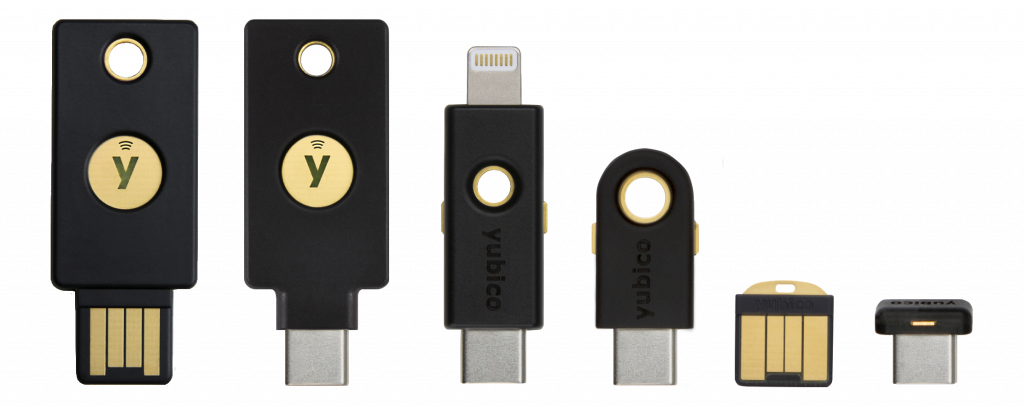
This article describes how to use YubiKeys for FIDO2-based Full Disk Encryption (FDE) on NixOS. The keys can be used as single-factor authentication devices or in combination with a pin.
Throughout this guide, names surrounded by
< >characters are used as placeholders, replace them with the appropriate values.
Preparations
Installer
-
Get a minimal ISO image and boot it.
-
Switch to the root user.
sudo -i -
Optionally, change the keyboard layout.
loadkeys sv-latin1 -
Connect to internet using, for example,
nmtui.
YubiKey setup
Make sure that all YubiKeys that will be used are configured correctly with a FIDO2 pin set, refer to official documentation.
Partitioning
Create a GPT partition table and two partitions on the target disk.
- Partition 1: The boot partition.
If you want to dual-boot with an OS that is already installed, use the existing boot partition.
- Size: 1GB recommended.
- Type: EFI System.
- Partition 2: The LUKS-encrypted partition.
- Size: Remaining space or user preference, it will contain the root and swap volumes.
- Type: Linux filesystem.
-
List all disks and identify which disk to install on.
lsblk -
Create the partitions.
cfdisk /dev/<disk> -
Set the following variables to match you partitions, they will be used in future steps.
EFI_PART=/dev/<efi_part> LUKS_PART=/dev/<luks_part> -
Format the boot partition, skip this if using an existing boot partition.
mkfs.fat -F 32 -n boot "$EFI_PART"
Encrypted partition
LUKS device
-
Create the LUKS device.
cryptsetup luksFormat "$LUKS_PART"You will be asked to enter a passphrase, either choose something simple and remove it later or choose a strong passphrase and keep it as a backup option. If you only have a single physical key I would recommend keeping it to avoid getting locked out.
-
Open the LUKS device using the selected passphrase. The last value in the command is the name the unlocked partition will be available under.
cryptsetup luksOpen "$LUKS_PART" encrypted
LVM
LVM is used to create multiple “partitions” (volumes) inside the encrypted partition.
-
Setup the LUKS device as a physical volume.
pvcreate /dev/mapper/encrypted -
Create a volume group.
vgcreate partitions /dev/mapper/encrypted -
Create two logical volumes.
- Volume 1: This will be the swap partition, choose an appropriate size.
- Volume 2: This will be the root partition, rest of the free space.
lvcreate -L 16G -n swap partitions lvcreate -l 100%FREE -n root partitions vgchange -ay # Activate volumes -
Format the volumes with appropriate filesystems.
mkswap -L swap /dev/partitions/swap
mkfs.ext4 -L root /dev/partitions/root
NixOS installation
Install
-
Mount partitions.
mount /dev/partitions/root /mnt mkdir /mnt/boot mount -o umask=077 "$EFI_PART" /mnt/boot swapon /dev/partitions/swap -
Generate (hardware) config.
nixos-generate-config --root /mnt -
Replace
/mnt/etc/nixos/configuration.nixwith this minimal config and replace all placeholders with appropriate values, there are 4.{ pkgs, ... }: { imports = [ ./hardware-configuration.nix ]; boot = { loader = { efi.canTouchEfiVariables = true; grub = { enable = true; efiSupport = true; device = "nodev"; }; }; initrd = { systemd.enable = true; luks.devices.encrypted = { device = "<luks_part>"; crypttabExtraOpts = [ "fido2-device=auto" ]; }; }; }; networking = { hostName = "<hostname>"; networkmanager.enable = true; }; users.users.<username> = { isNormalUser = true; extraGroups = [ "wheel" "networkmanager" ]; }; environment.systemPackages = with pkgs; [ vim git ]; console.keyMap = "<keymap>"; # E.g. "sv-latin1" system.stateVersion = "26.05"; } -
Install NixOS.
nixos-installSelect a root password when prompted.
-
Set the user password, replace
<username>with the username set inconfiguration.nix.nixos-enter --root /mnt -c 'passwd <username>'
YubiKeys
Plug in one key at a time and run the command below.
--fido2-with-client-pincontrols whether to require the user to enter the FIDO2 PIN when unlocking.--fido2-with-user-presencecontrols whether to require the user to tap the key to confirm presence when unlocking.
systemd-cryptenroll "$LUKS_PART" --fido2-device=auto --fido2-with-client-pin=no --fido2-with-user-presence=yes
Once all keys have been added the passphrase can be removed, unless it should be kept as a backup.
systemd-cryptenroll "$LUKS_PART" --wipe-slot=0
Reboot
Reboot the computer and boot into the fresh install. When prompted plug in one of the YubiKeys to unlock the LUKS-device.
The installation is now finished. There are some maintenance sections below, such as adding more keys, removing lost keys, and recovering a broken system.
You could now move on to installing a larger NixOS configuration, see for example my config, or just using the system.
Maintenance
Add additional keys
TODO
Remove lost key
⚠️ Make sure at least one working key is available at all times during this process. Losing access to all valid keys will make the data permanently inaccessible.
TODO
Recovery
TODO